



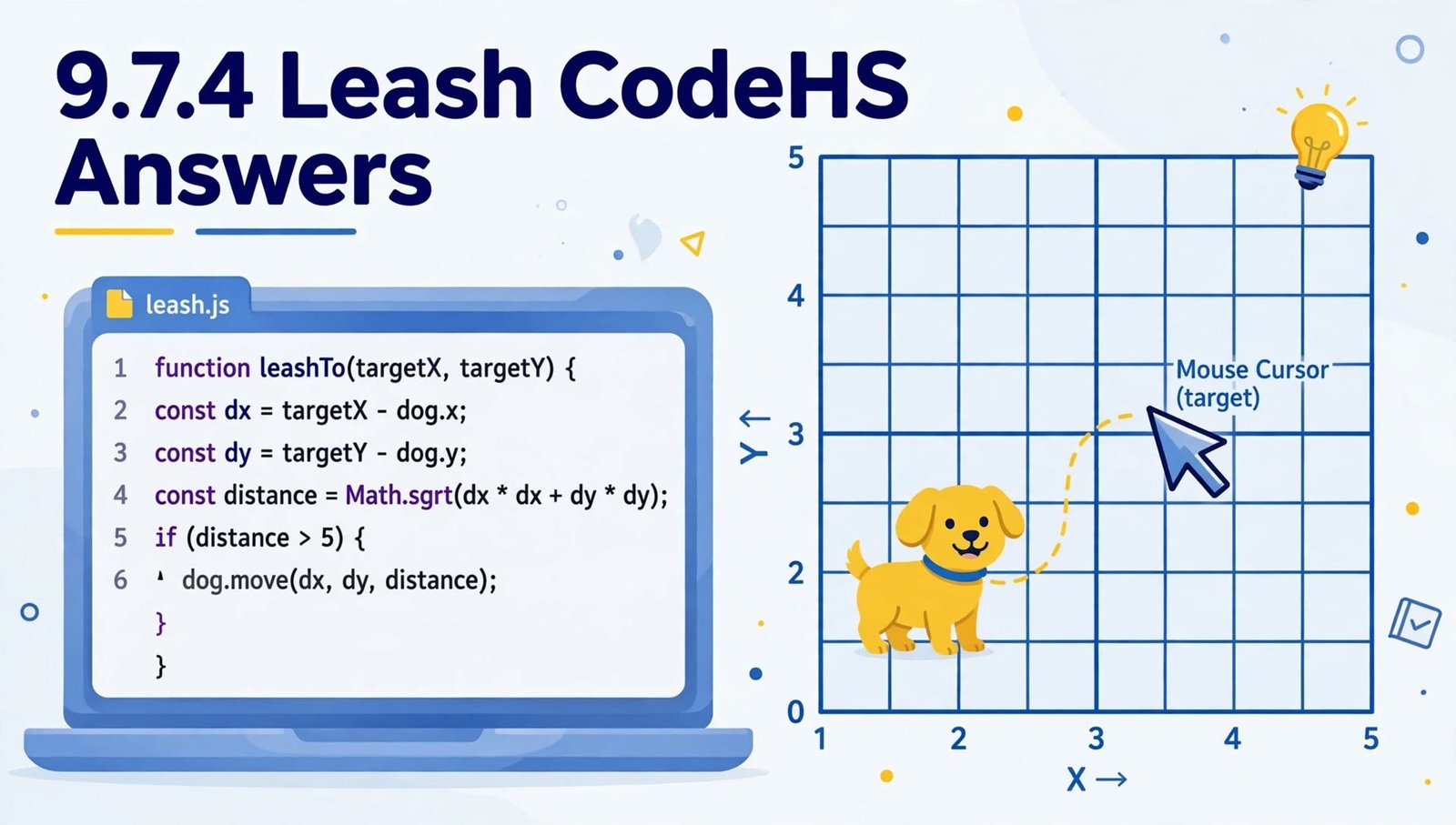
The 9.7.4 Leash CodeHS exercise is a programming activity that helps students understand graphics, coordinates, and mouse events in JavaScript. The task involves creating a visual leash effect by connecting a graphical object to a line and controlling its movement through user interaction.
Understanding the purpose of each programming instruction is important when working on this exercise. Rather than focusing only on finding a solution, students can use the activity to learn how graphical objects are created, positioned, and updated while a program is running.
This guide explains the main concepts associated with the 9.7.4 Leash exercise, how to approach the problem, and how to troubleshoot common coding errors. Because CodeHS courses and assignment versions may differ, students should compare these concepts with the instructions and starter code provided in their own accounts.
What Is 9.7.4 Leash in CodeHS?
CodeHS is an educational platform that teaches computer science through interactive lessons, programming exercises, and practical projects. Its JavaScript graphics activities introduce students to drawing shapes, working with coordinates, and responding to events such as mouse movement.
The Leash exercise is associated with creating an interactive graphic in which a line and a moving object work together to produce a leash-like effect. The exact behavior should be confirmed from the assignment prompt, since similarly named exercises can differ between course versions.
For students learning programming, this type of activity demonstrates how a program can respond to actions rather than simply display a static image. It also introduces the relationship between an object’s position and the coordinates supplied by a mouse event.
What Concepts Does the Leash Exercise Teach?
The exercise can help students develop several foundational programming skills, depending on the requirements of their course version. These include variables, functions, graphical objects, coordinate systems, and event handling.
Each concept serves a specific purpose. Variables allow a program to keep track of objects, functions organize instructions into reusable blocks, and coordinates describe where graphics appear on the canvas.
Mouse events introduce another important idea: programs can respond to user actions while they are running. Learning how these elements work together provides a useful foundation for future projects involving interactive drawings, simple games, and animated graphics.
Understanding the Assignment Before Coding
Before writing or modifying any code, read the complete instructions displayed in the CodeHS editor. Identify which objects the program must create, where they should appear initially, and what should happen when the mouse moves.
Pay attention to any required dimensions, colors, variable names, or function names. Some programming assignments evaluate specific requirements, so changing an expected value or omitting a required function may cause a solution to behave differently from what the exercise requests.
It is also helpful to inspect the starter code before making changes. Existing functions and variables may already provide part of the required structure, and understanding that structure can prevent unnecessary rewriting.
How JavaScript Graphics Work in CodeHS
JavaScript graphics programs use objects to represent visual elements on a canvas. Depending on the graphics library and course version, students may work with shapes such as circles and lines, along with methods that position, color, or update those shapes.
A circle can represent a ball or another moving object, while a line can represent a connection between two points. When the coordinates of an object change, its visible position can change as well.
The key is to understand which properties a method updates. Moving a circle and changing one endpoint of a line are different operations, even when both use the same coordinate values.
Understanding X and Y Coordinates
A graphics canvas uses a coordinate system to describe positions. The X coordinate represents horizontal placement, while the Y coordinate represents vertical placement.
In many introductory graphics environments, the coordinate origin is located near the upper-left corner of the canvas. Horizontal coordinates increase toward the right, and vertical coordinates increase toward the bottom.
These coordinates allow a program to calculate an object’s position instead of relying on fixed visual placement. If an assignment requires an object to begin in the middle of the canvas, the program can calculate the center from the canvas width and height.
How Mouse Events Make Graphics Interactive
Mouse events allow a program to detect user actions and respond to them. In a graphics exercise, the mouse’s current coordinates can be used to determine where an object should move or where a line should end.
An event-handling function receives information about the interaction and uses that information to update the program. The exact event registration method depends on the graphics library used by the assignment.
Students should check that the appropriate event handler is registered and that the callback function receives the event information it needs. If the mouse interaction does not work, reviewing this connection is a useful first troubleshooting step.
Common Mistakes to Avoid
One common mistake is writing code before fully understanding the expected behavior. An object may appear on the canvas, for example, but the program may still fail to meet the requirements if its movement or relationship with another object is incorrect.
Another mistake is confusing the starting point of a line with its endpoint. When a line connects a fixed location to a moving object, changing the wrong point can cause the line to move in an unexpected way.
Variable scope can also cause problems. If a graphical object is created inside a function but another function needs to access it later, the variable must be declared and managed in a way that makes the object available where it is needed.
Finally, students should watch for spelling errors in variable and function names. JavaScript is case-sensitive, so names that look almost identical may refer to different identifiers.
How to Test and Debug Your Code
After making a change, run the program and compare its behavior with the assignment instructions. Test the initial appearance first, then check what happens during mouse movement or any other required interaction.
If the output is incorrect, isolate the problem instead of changing several parts of the code at once. Check whether the objects are created, whether they are added to the canvas, whether their coordinates are correct, and whether the event handler is updating the intended properties.
Read any error messages shown by the editor and use them to identify possible syntax errors or undefined variables. Small, targeted corrections generally make it easier to determine why a program is not behaving as expected.
Why Understanding the Code Matters
Completing a programming exercise is more valuable when students understand the reasoning behind the solution. Learning how coordinates, functions, and event handlers interact makes it easier to adapt the same concepts to new assignments.
These skills are useful beyond the Leash activity. Interactive games, drawing applications, animations, and other graphical projects often depend on the same fundamental ideas.
By experimenting with the code, testing changes, and reviewing the results, students can develop a stronger understanding of JavaScript and improve their ability to solve programming problems independently.
Frequently Asked Questions
What is 9.7.4 Leash in CodeHS?
It is an exercise identified by the lesson number and title in a CodeHS course. The relevant assignment instructions determine the exact graphical behavior and programming requirements.
How can I find the correct solution for my CodeHS assignment?
Start by reviewing the exercise instructions and starter code in your CodeHS account. Compare the required behavior with your program, test your changes, and consult the course documentation if a method or requirement is unclear.
Why might a Leash solution from another website not work?
An online example may use a different course version, graphics library, required value, or interpretation of the task. It may also omit a condition required by the current assignment.
What should I check if my graphics do not move?
Check that the correct event handler is registered, the callback receives the appropriate mouse coordinates, and the relevant graphics objects are updated using the intended methods.
Why are coordinates important in this exercise?
Coordinates tell the program where an object or line point belongs on the canvas. Understanding them helps students control graphical placement and create interactive behavior.
Is the Leash exercise useful for learning JavaScript?
Yes. Exercises involving graphics and interaction can help students practice variables, functions, coordinates, and event handling. These concepts are useful in many introductory programming projects.
Final Thoughts
The 9.7.4 Leash CodeHS exercise offers an opportunity to practice important programming concepts through a graphical task. By understanding the assignment requirements, working carefully with coordinates, and testing the behavior of each component, students can improve both their coding skills and their problem-solving approach.
